Everyone helps. Everyone sees what they need.
Invite the people who run your events with you, give each one a role, and keep money and buyer details to those who need them.
Sign upIncluded on every plan, Seva included.
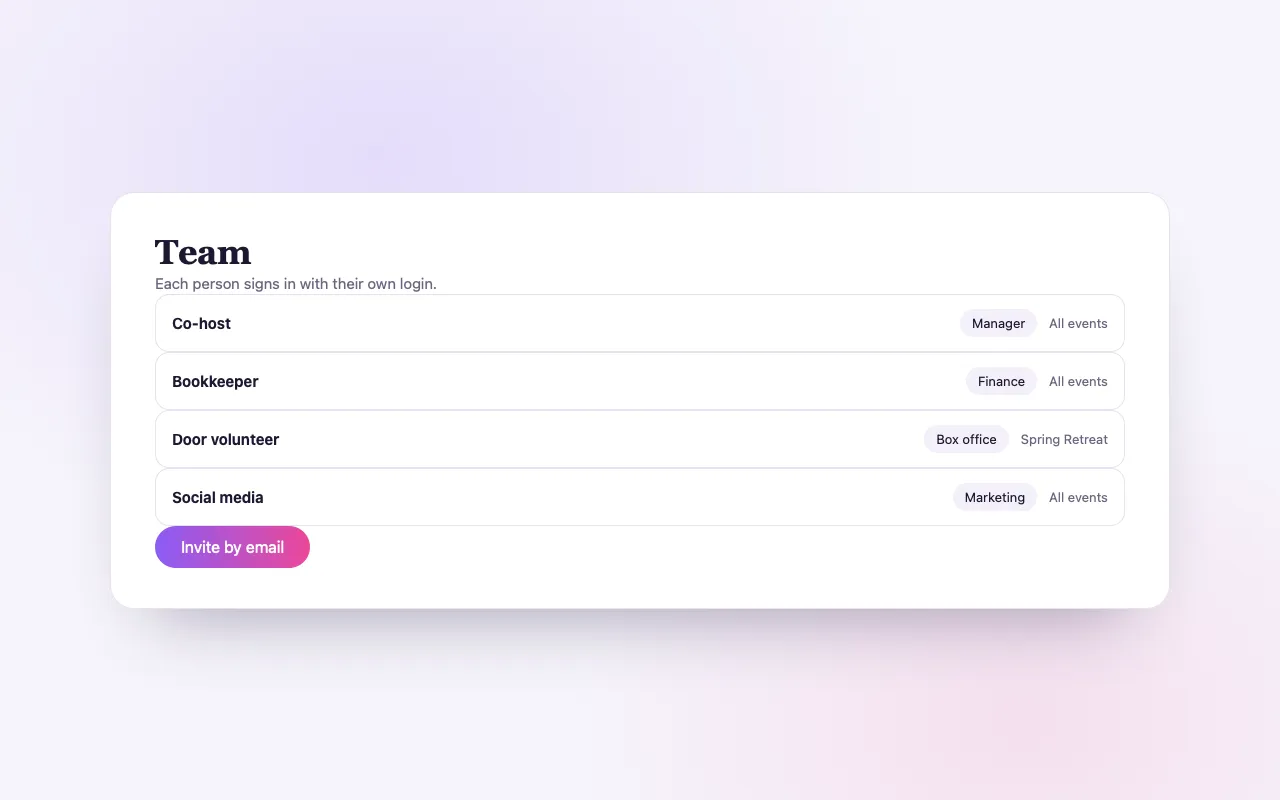
Shared work, kept in its place
Roles in plain words
Admin, manager, finance, marketing, box office or viewer, or tick the exact permissions yourself.
The whole account or one event
Give a manager every event, or a co-host only the one you share. Change it, or take one event away, at any time.
Their own login
Each person signs in with their own free account and switches into yours. Nobody shares your password.
How it works
Invite by email
From Settings → Team, or share one event from its page.
Pick a role
And the events it covers.
They switch in
Your account appears in their account switcher, with only what their role allows.
Loved by artists and organizers
“Not only does BrightStar offer a powerful software platform that has worked very well for my events, but their client support is the best. Their communication is personal, heart-centered, and always thoughtful.”

Peter KaterTwo-Time Grammy Winner (Client Since 2014)
“We've been so happy with the outstanding customer service that we've received while working with BrightStar, and feel great about supporting a company that is authentically committed to the ideals of higher consciousness.”

Eric ForbisFounder, BuddhaFest (Client Since 2012)
“For nearly two decades, Akal (owner of BrightStar) has been lending his skills and talents in support of the Bhakti movement. His platform uniquely serves our movement with authenticity and heart. The technology also rocks!”

Jai UttalGrammy Nominee (Client Since 2014)
Questions organizers ask
How do I give my staff access to my events?
Invite them by email from Settings → Team and choose a role. They sign in with their own free account and switch into yours from the account switcher.
Which roles are there?
Admin (every event tool, marketing and the team), manager (every event tool and marketing), finance (reports, buyer details and money figures), marketing (reports and marketing), box office (the guest list and check-in) and viewer (look only). Or choose custom and tick the permissions.
Can door volunteers check guests in without seeing my revenue?
Yes. The box office role can open the guest list and check people in from a phone’s browser. Revenue and order money stay hidden from them.
Can I share just one event with a co-host?
Yes. Share it from the event’s page with the role you choose. Sharing more events later widens the same invitation rather than creating a second one.
Can a teammate create or delete events?
No. Teammates work inside your events; creating and deleting events, billing and payouts stay with the account owner.
How do I remove someone?
Remove them from Settings → Team, or take away a single event. It takes effect on their next click, even if they are signed in.
How many people can I invite?
Up to 3 people on Seva, 10 when any of your events uses Elevate, and 25 with Amplify.
Can I see who changed what?
Every grant, change and removal is logged, and changes to your events are recorded with who made them.
Read more
Hosting is shared work
Behind most gatherings there is a small team. Someone looks after registration, someone the money, someone the newsletter, and on the day a few friends stand at the door. Giving each of them your login is the quick way and the wrong one: everyone sees everything, and you cannot tell who did what. Team access lets each person sign in as themselves and see exactly the part of your account that their work needs.
Inviting someone
From Settings, Team, you enter a person’s email address, choose a role and choose whether it applies to your whole account or to particular events. They receive an invitation. They sign in with their own free BrightStar account, and your account appears in their account switcher. Nobody learns your password.
The roles
Roles are named for the work. Admin can use every event tool, manage marketing and manage the team. Manager can use every event tool and marketing. Finance sees reports, buyer details and money figures. Marketing sees reports and manages marketing. Box office works with the guest list and check-in. Viewer can look and nothing more. If none fits, choose custom and tick the permissions yourself.
The permissions behind them
There are seven permissions for events, among them viewing, editing, checking guests in, seeing reports, seeing buyer details and seeing financial figures. There are two for the account: manage marketing and manage the team. A role is simply a sensible bundle of these. Money and buyer details are separate permissions on purpose, so that neither is handed out by accident.
The whole account or chosen events
A business partner may need everything. A co-host needs only the event you share. You can give a role across the account, or for selected events, and you can change that later: add an event to someone’s access or take one away without touching the rest.
What stays with the owner
Some things are never delegated. Teammates do not create or delete events. They do not manage billing, the Stripe connection or payouts. Whatever role you give, where the money goes remains the account owner’s decision alone.
Money stays hidden unless you say otherwise
A teammate without the financial permission does not see revenue, fees or payouts. Order amounts are hidden from them too. This is what allows you to give a volunteer the guest list without showing them what the evening earned.
Door volunteers
For the day of the event, give your helpers the box office role. They can open the guest list and check people in from a phone’s browser, signed in as themselves. They see names and tickets; they do not see your sales figures. When the event is over, remove their access.
Working in someone else’s account
A teammate who also hosts their own events keeps their own account and switches between the two from the account switcher. A freelancer who works for several organizers sees each of them there. Reports, events lists and guest lists show the account they have switched into.
Removing access
You can change a role or remove a person at any time from Settings, Team. Their access ends at once. There is no password to change, because they never had yours.
Sharing one event
You can also share a single event from the event’s own page, with the role you choose. If you later share more events with the same person, their existing invitation simply covers more; they do not end up with several separate accesses to keep track of.
Choosing roles well
Give the smallest role that lets a person do their work. Use the named roles where you can, since it is clear at a glance what a Finance or a Box office teammate can do. Review your team list from time to time, especially after a large event, and remove those who no longer need access.
Typical teams
A studio: the owner, a manager for day-to-day changes, and front-desk staff with box office. A festival: an admin for the production lead, finance for the bookkeeper, marketing for the person running promotion, and a group of volunteers with box office for the weekend. A touring artist: a manager across the account, and each local promoter on their own date.
Where it is included
Team access is part of every plan, including Seva. There is no charge per teammate.
An example
A promoter brings a touring artist to three cities. The artist’s manager is invited as a Manager across the account, so she can adjust any date. In each city, the local venue’s front-of-house lead is given Box office on that city’s event only, and checks guests in on the night from a phone. The promoter’s bookkeeper has Finance and downloads the revenue reports after each show. Nobody has the promoter’s password, and after the tour the three venue grants are removed in a minute.
Why separate logins matter
With one shared login, a mistake has no author and a departure means changing the password for everyone. With a login for each person, access ends for one person alone, and each of them works under their own name. It is also kinder to volunteers: they are trusted with what they need and are not burdened with what they do not.